Course infrastructure
Build a Jupyter Site for Your Course
Build a static site where students run Jupyter in their browser, nothing to install and no server to maintain.
What faculty used it for
Many faculty in chemistry and physics now use Jupyter notebooks with active learning to support their teaching. A perennial problem for this pedagogy is installation and setup. Any implementation requires some work to get things up and running, but I’ve found it’s possible to offload some of that to an AI assistant so students and faculty can focus on teaching and learning, not installation.
One solution for using Jupyter notebooks is that students can download and install a Python distribution, but this can be fraught when many have different devices and different levels of comfort with technology. A no-installation alternative is to serve the notebooks from somewhere else, either a local or cloud server or a service such as Google Colab. These can work well but the server requires setup and maintenance, while Colab requires a Google account with free space, and also Colab’s AI completions sometimes do the students’ assignments for them.
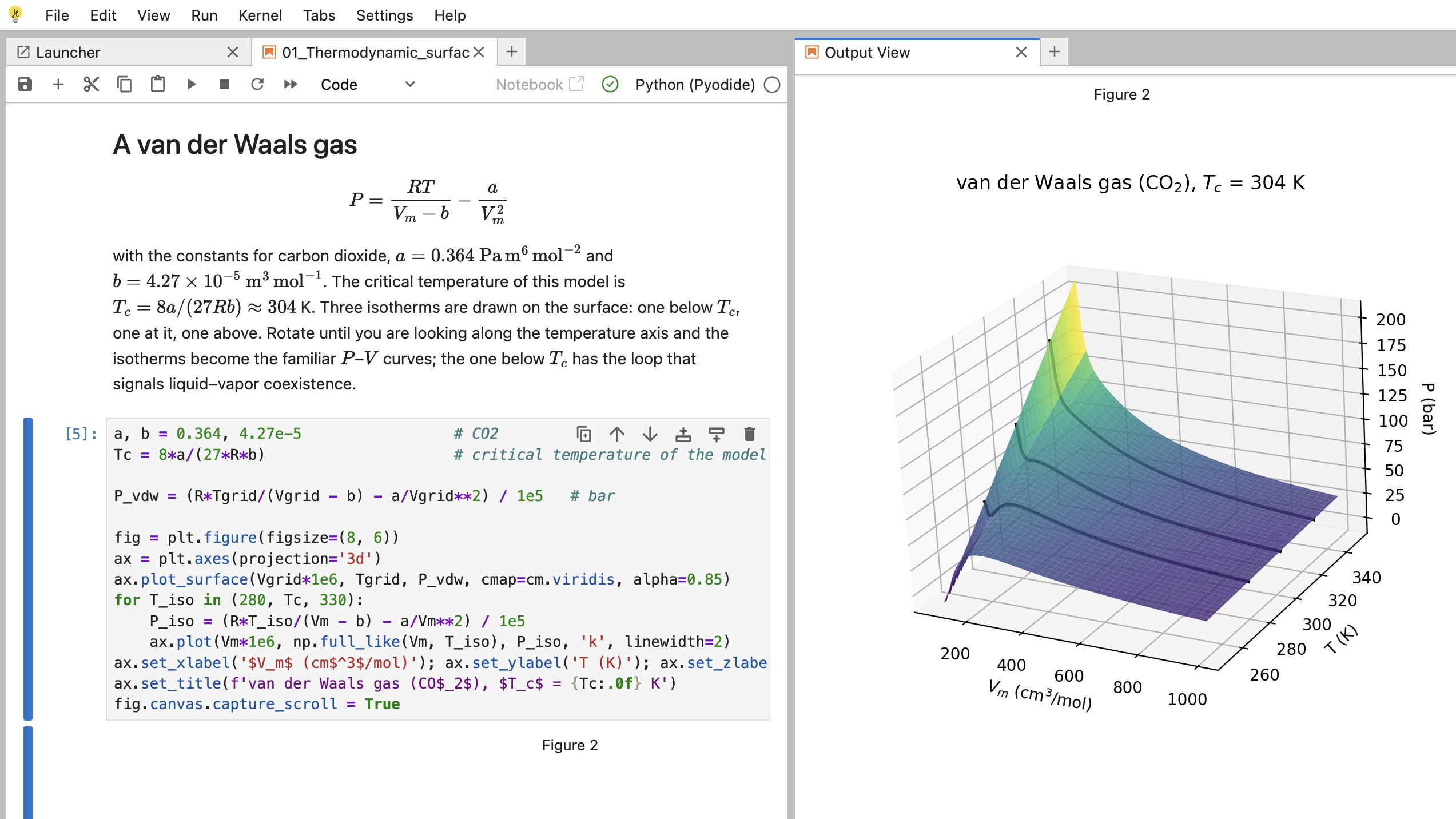
JupyterLite is an attractive third option, especially with some AI assistance. With JupyterLite the notebooks are served from a static site, and the computation happens on the student’s computer directly in their browser. This makes them easier to set up and maintain, and students don’t need to install anything. I used this as a way for students with no programming experience to do Python activities in my classes. I’ve also had a collaborator use this for a high school outreach activity - there the Python happens on the day of and there is no time for installation, so JupyterLite is ideal. Check out a live demo site here.
The biggest downside with JupyterLite is there is some configuration work that needs to be done to make sure your site is compatible with your notebooks, as well as some setup to get the website live on GitHub pages. However, AI tools make this much easier. I had an AI coding assistant audit my notebooks for compatibility, prepare the repo and verify that the needed packages were installed and worked with my notebooks, and create a local test installation that I could play around with. If you log in to GitHub through the command line, it can also create the repository and set up the site.
Why it was useful
JupyterLite lets students start using Jupyter notebooks right away, no setup or account required and no fuss. There are no built-in AI suggestions, so students do the programming activities without help by default. It even works for outreach activities with high school students where we don’t have time to install anything or explain Google Colab - students just go to a website and it works right away, on any computer that has a web browser. Overall it’s a lightweight way to serve Jupyter notebooks that works very well for teaching, and an AI coding tool does the work of setting up and making everything compatible with the notebooks you already have.
I used the skill to set up my thermodynamics course and it flagged 8 of 11 notebooks using a plotting mode that no longer exists in Jupyter, founds 11 data files sitting in subfolders that wouldn’t have loaded, and identified 7 remote images, one of them a dead link. I was able to fix these and get the converted site running locally in about an hour.
For grading, I had students download the notebook and upload it to Gradescope. The JupyterLite workflow is compatible with autograders like Otter-Grader - I grade manually but I use Otter-Grader to maintain student and instructor versions. You just commit the student version to your JupyterLite site.
Some caveats: the computation happens directly in the student’s browser and the notebook is a local copy that lives in the browser’s storage on the students computer. As a result, if a student uses an incognito tab or switches computers or browsers they can lose their work. I encourage them to download their notebook when they are done and I collect it on Gradescope. Another caveat is that if you push an updated version students will not see it by default if they’ve already started working on a previous version. Instead you have to update a notebook while students are still working on it, it’s best to use a different filename.
Materials to adapt
- The demo site and its repository, william-pfalzgraff.github.io/jupyterlite-course-demo and github.com/william-pfalzgraff/jupyterlite-course-demo.
- The skill. It walks an AI coding assistant through interviewing you, auditing your notebooks for what breaks in a browser, building a local demo you can click through, adapting the notebooks with a changelog, and, if you want, publishing to GitHub Pages.
- Your notebooks, with their data files and images, in one folder.
- Everything else: an AI coding assistant that can run commands on your computer (I used Claude Code), a Python installation for building the site, a free GitHub account if you want to publish, and a web browser to check the result in.